
Delete Gmail Emails Older Than [X]
To delete Gmail emails older than a year, type older_than:1y in Gmail's search bar, select all matching conversations, delete, then empty Trash to reclaim space. Or use EmailSlim to see which old senders use the most storage and bulk delete the biggest first — free scan of your first 500 emails.
Last updated: June 2026Gmail's older_than: filter finds old emails by age. EmailSlim ranks them by storage impact — so you delete what actually matters first.
Your email content stays private — we only analyze metadata
EmailSlim never deletes emails. All deletions happen in your inbox when you approve them.
Gmail's older_than: search operator
Type any of these directly in Gmail's search bar to filter emails by age. Combine with other operators — for example older_than:1y label:promotions to target old promotional mail specifically.
Older than 1 year
Older than 6 months
Older than 2 years
Older than 90 days
How to Delete Gmail Emails Older Than 1 Year
The manual method using Gmail's search filter — and what to do when it isn't enough.
Type the filter in Gmail search
In the Gmail search bar at the top, type older_than:1y and press Enter. Gmail will show every email older than 365 days. Adjust the number and unit (d = days, m = months, y = years) to match the age you want.
Select all matching conversations
Click the checkbox at the top-left of the email list. Gmail selects the emails on the current page. Then click "Select all X conversations that match this search" (appears above the list) to capture everything, not just the visible page.
Click the trash icon to delete
Click the trash (delete) icon in the toolbar. Gmail moves all selected emails to Gmail Trash. They stay there for about 30 days — you can restore any of them during that window.
Empty Trash to reclaim storage now
Important: Gmail Trash still counts toward your 15 GB storage quota until it is emptied. In the left sidebar, click "More" → "Trash" → "Empty Trash now" to immediately reclaim the space.
The limitation: older_than: filters by age, not storage size
The manual approach works, but deleting the oldest emails isn't always the same as deleting the largest ones. An email from 8 months ago containing a 50 MB video uses far more space than 500 old plain-text newsletters. Gmail gives you no way to see which senders or emails are responsible for the most storage — so you may delete thousands of old messages and barely move the needle on your storage bar.
Delete by storage impact, not just age
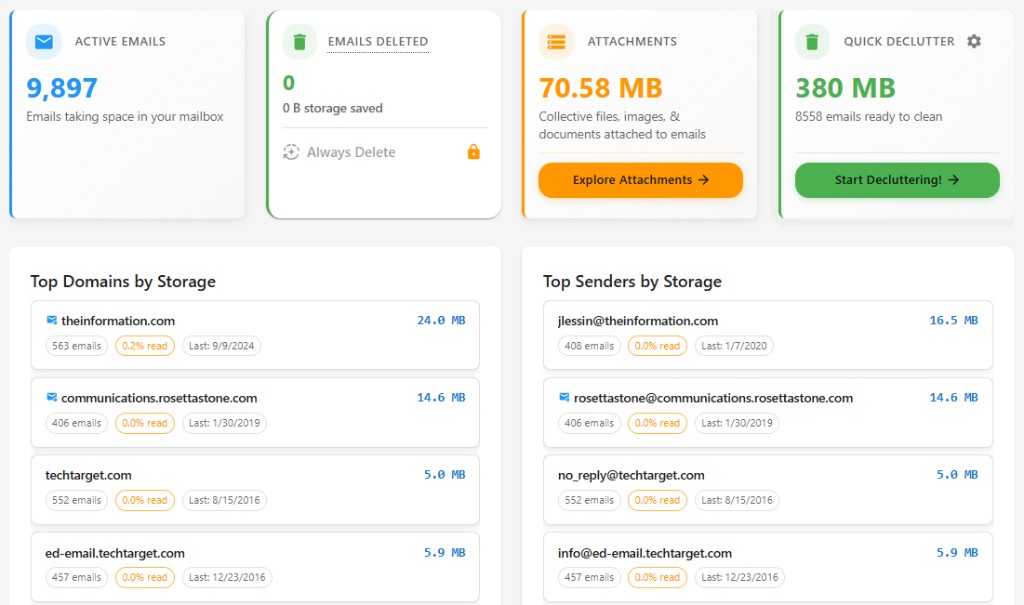
EmailSlim shows every sender ranked by their total storage footprint — so you see exactly where your gigabytes are going before you delete a single email.
Top storage hogs
Sample inbox data (simulated, not live)newsletter@retailer.com
8,231 emails
2.4GB
deals@travelportal.com
3,104 emails
1.2GB
updates@saasapp.com
1,987 emails
740MB
Why Use EmailSlim for Old Email Cleanup?
See storage by sender — not just age
Filter by date range and sender together
Bulk delete thousands of old emails safely
Emails go to Trash first — fully recoverable
Free scan of 500 emails — no credit card
Privacy-first: never reads your email content
FAQs: Deleting Old Gmail Emails
Does older_than:1y delete emails permanently?
No. Using older_than:1y to find and then delete emails in Gmail moves them to Gmail Trash, not permanent deletion. They remain in Trash for approximately 30 days, during which you can restore any of them. Gmail permanently deletes them after 30 days, or immediately if you manually empty the Trash.
Do deleted emails still count toward Gmail storage?
Yes, while they are in Trash. Gmail Trash counts toward your storage quota until the Trash is emptied — either automatically after 30 days or manually by clicking "Empty Trash now." If you're trying to free up space immediately after a bulk delete, go to Trash and empty it.
Can I use older_than: with other Gmail filters?
Yes. Gmail search operators can be combined. For example: older_than:1y label:promotions finds old promotional emails. older_than:2y from:newsletter@example.com finds old emails from a specific sender. You can also combine with has:attachment to find old emails with large files.
What's the difference between older_than: and before: in Gmail?
older_than: is relative to today (e.g., older than 1 year from now). before: takes an absolute date in YYYY/MM/DD format (e.g., before:2024/01/01 finds emails received before January 1, 2024). Use older_than: for rolling cleanup and before: when you want to target a specific cutoff date.
Does EmailSlim read my old emails?
No. EmailSlim analyzes only email metadata: the sender address, the date received, and the message size. Your email subject lines, body content, and attachments are never accessed or stored. This is what lets us show storage rankings without compromising your privacy.
Related guides: delete old Gmail emails · bulk delete Gmail emails · Gmail storage cleanup tool